How to Install Apollo IPTV on Android & iOS in 2025 (Complete Step-by-Step Guide)

Hey there! So you just grabbed your Apollo IPTV subscription and you’re ready to start streaming, right? Perfect. Let me Tell you How to Install Apollo IPTV on your phone or tablet. It’s honestly way simpler than it looks – I promise you’ll be watching in about 5 minutes.

We’re going to use IPTV Smarters Pro because it’s the most reliable app and works perfectly with Apollo IPTV. Ready? Let’s do this.


What You’ll Need Before Install apollo iptv :

Just three things:

  1. Your phone or tablet (Android or iPhone/iPad)
  2. Your Apollo IPTV login details (check your welcome email)
  3. About 5 minutes

Don’t have your Apollo IPTV subscription yet? Grab one from the Pricing Page and we’ll be here when you’re ready.

Part 1: Install apollo iptv On Android (Phone or Tablet)

Step 1 : Download IPTV Smarters Pro

What to do:

Step 2 : Choose Your Login Method

What to do:

  • Tap “Login with Xtream Codes API” (this is what Apollo IPTV uses)
  • Don’t tap the other options—we just need Xtream Codes
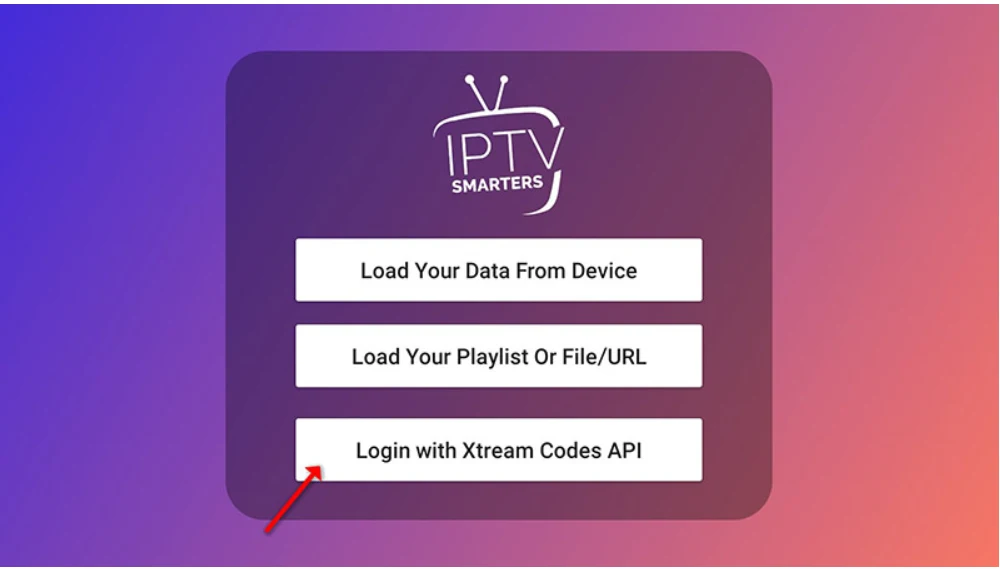
    IPTV Smarters Pro login method selection showing Xtream Codes API option
     

Step 3 : Open the App

What to do:

  • Once installed, tap Open
  • You’ll see a welcome screen with login options
    IPTV Smarters Pro app in Google Play Store

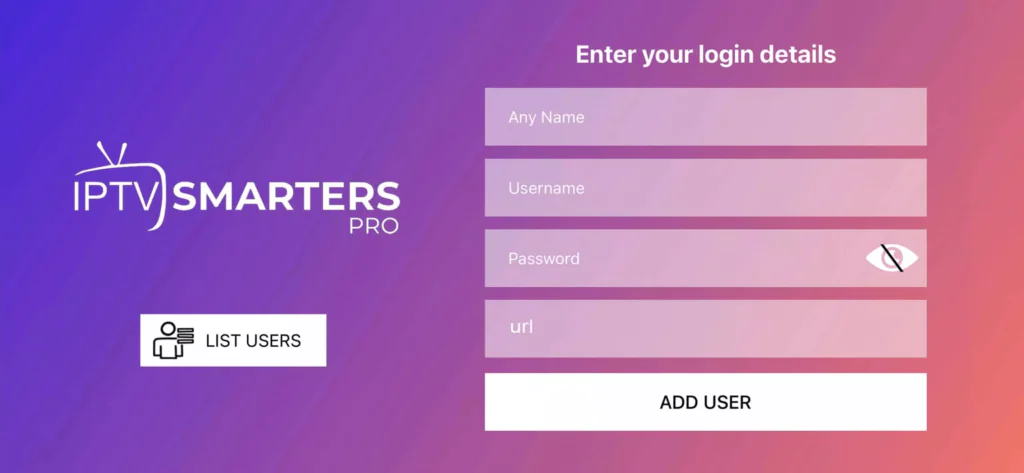
Step 4 : Enter Your Apollo IPTV Details

What to do:

Now grab that welcome email from Apollo IPTV. You need three things:

  1. Any Name: Your name for exemple.
  2. Username: Copy-paste from your email (it’s case-sensitive!
  3. Password: Copy-paste this too
  4. Server URL: This looks like http://example.com:8080 or similar

    Enter all three, then tap “Add User” or “Sign In”

Step 5 : Wait for Channels to Load

What to do:

  • The app will connect to Apollo IPTV servers
  • You’ll see a loading screen for 10-30 seconds
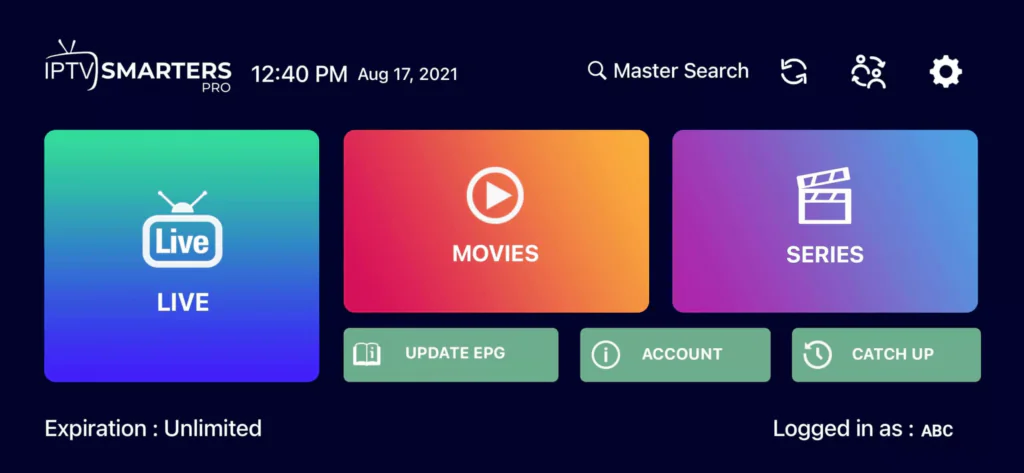
    IPTV Smarters Pro loading channels from Apollo IPTV server

Step 6 : Start Watching!

What to do:

  • Once loaded, you’ll see categories: Live TV, Movies, Series
  • Tap Live TVSports (or whatever you want to watch)
  • Tap any channel to start streaming
  • That’s it—you’re done!

Part 2: Install apollo iptv In iOS (iPhone or iPad)

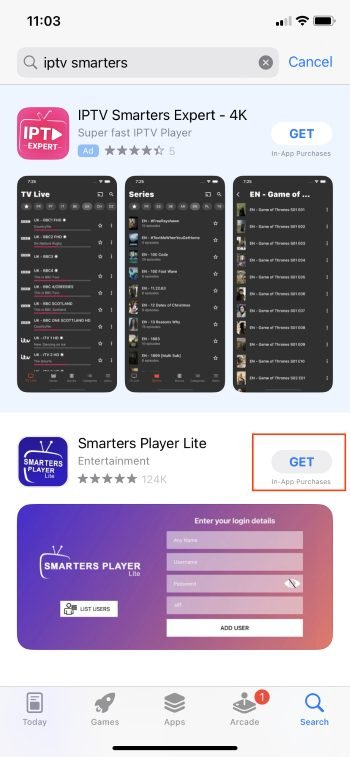
Step 1: Download IPTV Smarters Player Lite From App Store

What to do:

  • Open App Store on your iPhone or iPad
  • Search for “Smarters Player Lite
  • Look for the app by “WHMCS SMARTERS”
  • Tap Get, then Install
  • Use Face ID or Touch ID if prompted

    IPTV Smarters Pro app listing in Apple App Store

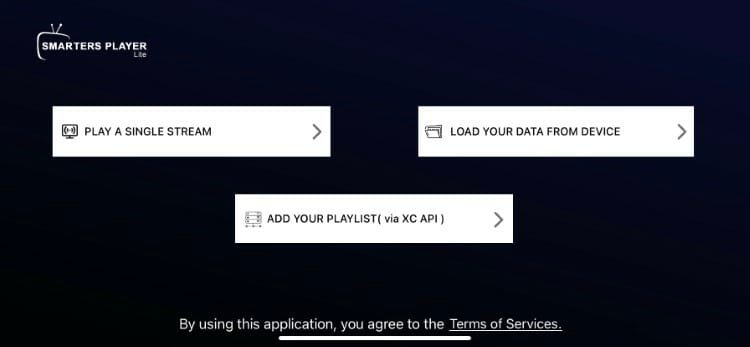
Step 2 : Same as Android

Seriously, once the app is installed, follow Steps from the Android section above. It’s identical:

  • Open app
  • Choose “Login with Xtream Codes API”
  • Enter your credentials
  • Wait for channels to load
  • Start streaming

    IPTV Smarters Pro login screen on iOS device

Troubleshooting Quick Fixes

“Invalid Username or Password” Error Fix:

  • Copy-paste your credentials again (don’t type manually)
  • Check for extra spaces at the end
  • Make sure your Apollo IPTV subscription is active
  • Still stuck? Contact Apollo IPTV support or message on WhatsApp

Channels Won’t Load Fix:

  • Check your internet connection (need at least 10 Mbps)
  • Close the app completely and reopen
  • Try switching from WiFi to mobile data (or vice versa)
  • If it still doesn’t work, uninstall and reinstall the app

App Keeps Crashing Fix:

  • Update the app in your app store
  • Restart your phone/tablet
  • Clear the app’s cache: Settings → Apps → IPTV Smarters Pro → Clear Cache (Android only)

Video Buffers or Freezes Fix:

  • Lower video quality in app settings (Settings → Video Quality → 720p instead of 4K)
  • Move closer to your WiFi router
  • Close other apps using your internet
  • Switch to a wired connection if possible (using adapter)

Need More Help?

Resources:

Leave a Comment

Your email address will not be published. Required fields are marked *

Shopping Cart
  • Your cart is empty.